Connections (Layer 3)#
Connections are layer 3 virtual cross connects. They connect your virtual routers to a multitude of end-points like ports, other ServiceFabric customers, the Internet, and more.
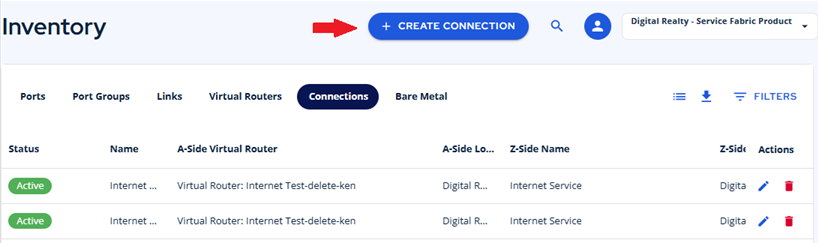
- Click the Service Builder icon on the left navigation panel and select Create Connection or the CREATE CONNNECTION button, as shown below.
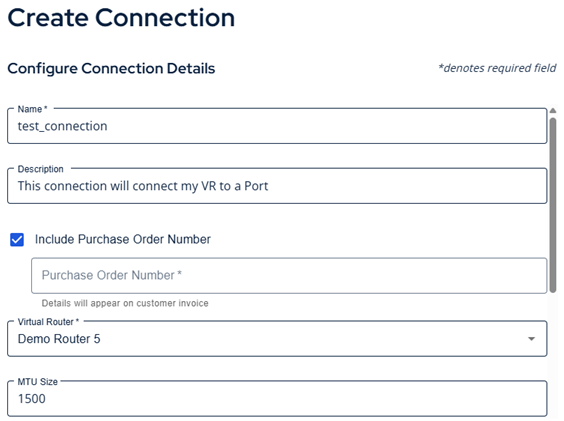
- Give your connection a Name and a Description
- Purchase Order Number: Now you can add a PO# that will be appended to this line item on the ServiceFabric bill. Enable the checkbox and enter your PO#.
- Select your existing Virtual Router
- If supported, you can change the MTU value displayed.
Note: Not all virtual routers allow you to change the MTU. This setting is partner dependent.
Layer 3 Attachment Types#
There are many attachment types to choose from in the Attachment selector.
- Cloud Onramps
- Ports (Yours or Others)
- Virtual Routers (Yours or Others)
- Digital Internet
After you complete setting up your Connection, you can configure any Advanced Settings you require for your layer 3 network.
Virtual Router to Cloud#
Connecting to your cloud is easy and is very similar to creating a Link to your cloud provider. When creating your Connection to a cloud provider, select that provider from the Gateway Type dropdown.
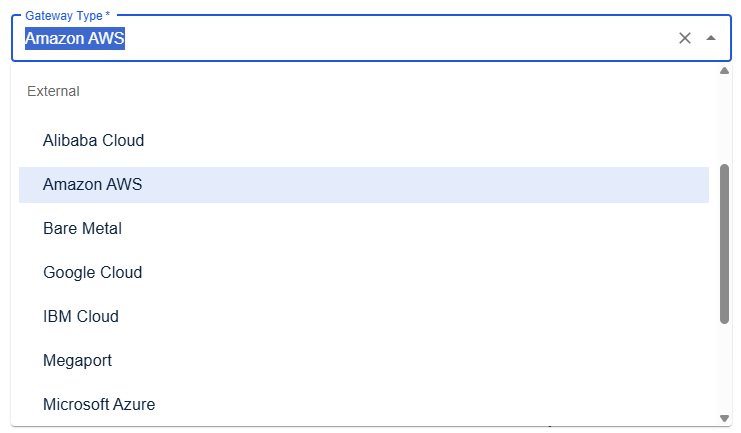
Each provider requires slightly different information, but all require credentials that prove you have acess to the cloud resources. Please have the required items such as:
- Account ID
- Pairing Keys
- Cloud Port Atachment
Virtual Router to Port#
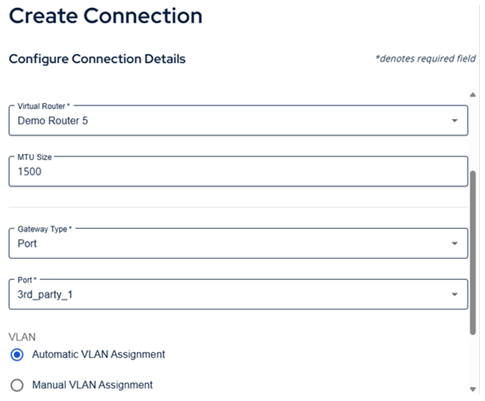
Below is an example of a connection from your virtual router to a port on the ServiceFabric network.
Virtual Router to Virtual Router#
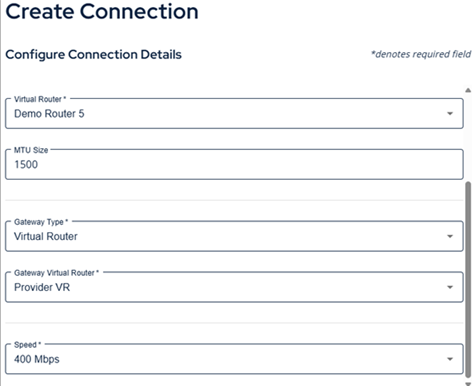
Below is an example of a connection from your virtual router to another virtual router on the ServiceFabric network.
Virtual Router to Internet#
Below is an example of a connection from your virtual router to your Internet service on the ServiceFabric network.
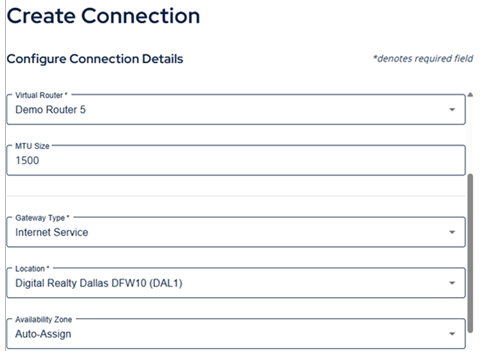
- Select a Speed
- Click the CREATE CONNECTION button at the bottom of the form to begin.
Advanced Settings on Connections#
To get started configuring the advanced options for your virtual router, open the connection from Inventory and click the Edit icon.
QinQ Support#
If you need support for QinQ, open your connection and select the edit pencil icon in the upper right:
NOTE: If your virtual router is connected to a port with Q-in-Q enabled, you'll find this optional slider at the top:

You can turn it off and QinQ tags will be dropped.
VLAN Settings#
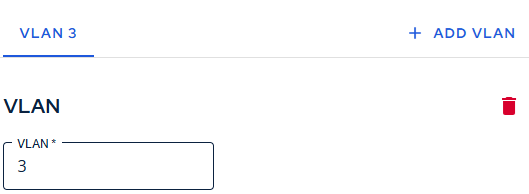
Add additional VLANS to segment your traffic.
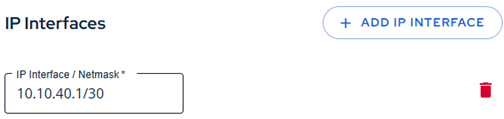
Interface Configuration#
Add or edit additional router interfaces to be used in your BGP setup.
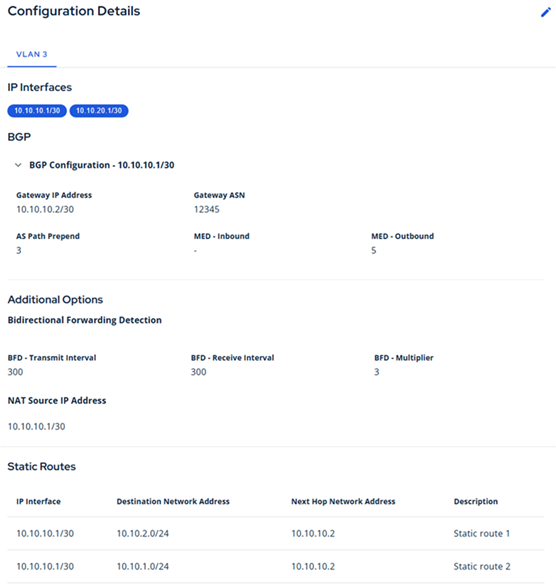
BGP Configuration#
Click +Add BGP Configuration to start a new BGP configuration.
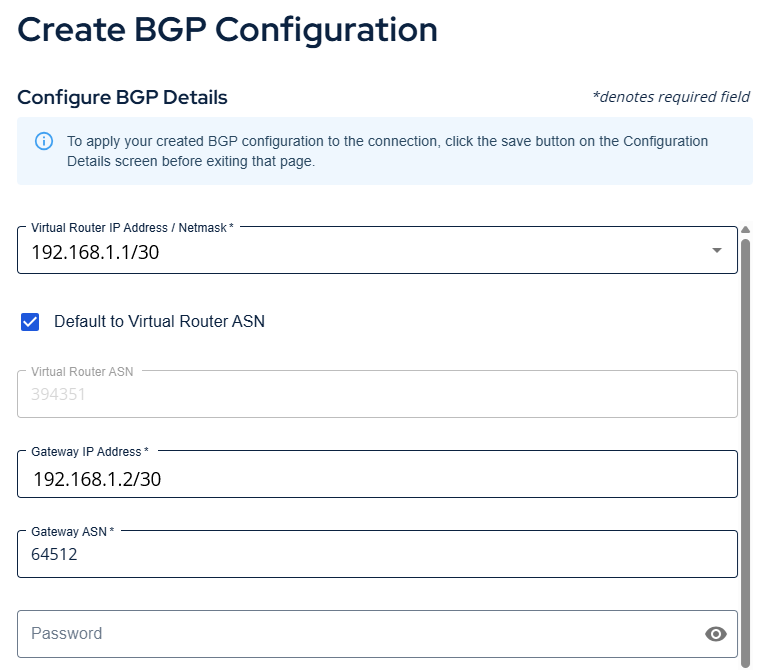
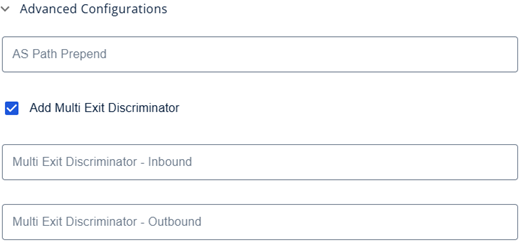
When creating a BGP configuration you can expand the Advanced Features option and enter details for AS Prepend and Multiexit Discriminator.
BGP Path Prepend - The ASN path length determines the route advertisement priority for outgoing BGP paths. The route with the shortest AS path has the highest preference, and it wins over any longer path advertisements. Longer path lengths have a lower priority. AS path prepending lengthens the path to lower the path priority.
MED (Multi-Exit Discriminator) - BGP path attribute that can influence a BGP neighbor to take a preferred route when the advertising autonomous system (AS) is the same for candidate routes and there are multiple entry points for that AS. A lower MED metric is preferred over a higher metric. You can use the MED attribute to switch traffic between two VXCs.
Additional Options#
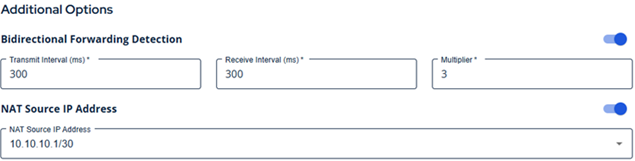
Below are some additional option you can set for your connection.
BFD and NAT Configuration Options#
BFD (Bidirectional Forward Detection) - The BFD protocol detects path failure between directly connected BGP neighbors, allowing for a faster BGP routing re-convergence time.
NOTE: Each CSP has its own preferred BFD settings.
NAT (Network address translation) - conserves IPv4 address space by translating the unregistered private IP addresses used for an organization’s private inner network into a single registered public IP address. This single public IP address is then used to connect to external networks, like the internet or a CSP.
Static Routes Configuration#
Static routes - Static routes establish reachability to peers in place of BGP connections that provide dynamic routing. You configure static routes to provide connectivity to a customer device that doesn’t support BGP or to a target device that requires manually configured addressing and routes.
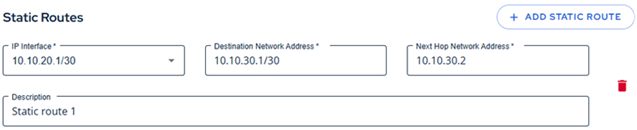
Examples#
AWS BGP Example#
There are a few settings you must get right when setting up a BGP connection between your ServiceFabric virtual router and AWS. First, take note of your Peering settings in the AWS console:
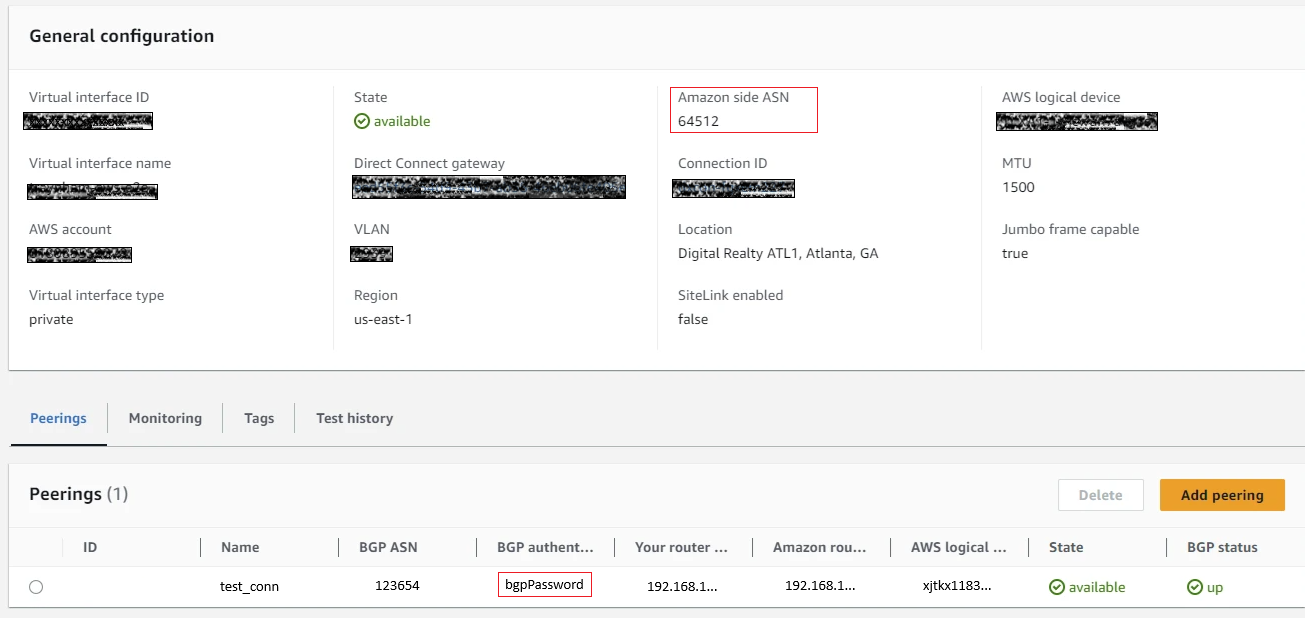
You will need:
- Gateway IP Address - an IP from your selected Interface
- BGP ASN from AWS - Input this value in the Gateway ASN field
- BGP Authentication Key from AWS - Input this in the Password field
Note: You must enter your password exactly as it appears in the AWS Peerings section or else your session will not go live.