Advanced Routing Options#
These sections contain more advanced routing and VLAN topics to make setting up your ServiceFabric network easy and quick.
802.1q VLAN Tagging (Dot1q)#
Layer 2 networks sometimes require a method for determining the path of an ethernet frame. This can be achieved by using the 802.1q protocol, which is sometimes referred to as dot1q. This standard describes the adding of a numeric tag to an ethernet frame to create what is known as a Virtual Local Area Network, or VLAN. VLANs make it easier for a switch to forward traffic to different switches.
Each port on a switch can be tagged with a VLAN. When a tagged ethernet frame enters the switch, it gets forwarded to the port with that VLAN tag. ServiceFabric acts like another switch on your network, forwarding you traffic that might be tagged. ServiceFabric gives you tools to add VLAN tags to your data, making it easier to make decisions about where to send data on the network.
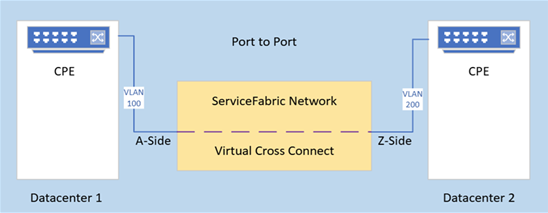
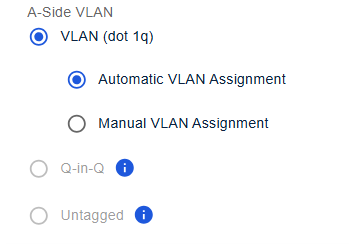
In the ServiceFabric portal, you can add or remove VLAN tags when creating a Link or a Connection, by specifying your VLAN configuration for the A or Z side.
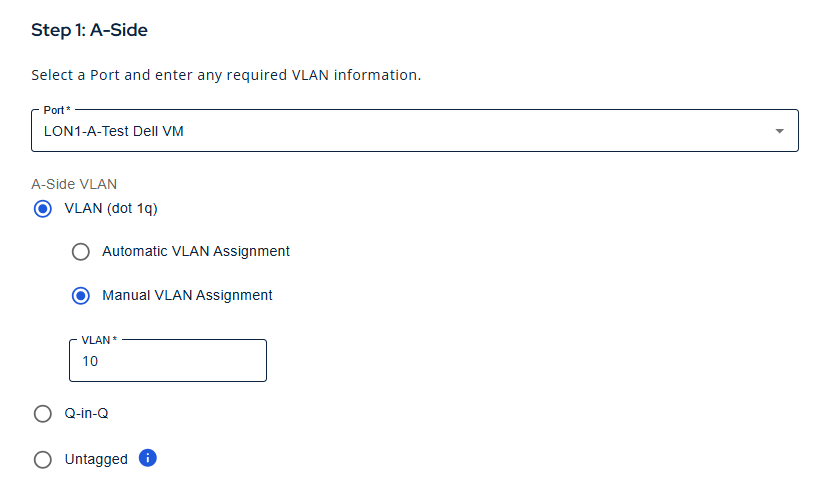
For Links, you can specify the A-Side VLAN using dot1q. Traffic from the Z-Side will exit the A-Side with this VLAN tag, thus performing VLAN Translation.
802.1ad – Double Tagging (Q-in-Q)#
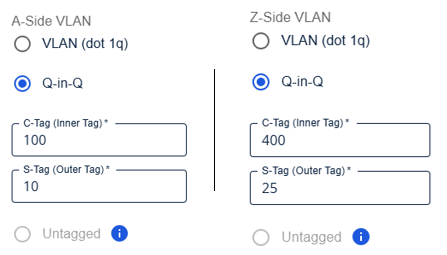
When large networks or service providers use VLANS (802.1q) to move traffic across switches in their own networks, they need to preserve the existing VLANs. This can be accomplished by adding a VLAN tag on the top of another, as per 802.1ad standard for Q-in-Q.
ServiceFabric gives the flexibility for setting Q-in-Q. These values can be set for the A-side or Z-side of a virtual connection, meaning these values can differ depending on which direction the packet is flowing.
Untagged Links#
All ServiceFabric ports are Multi-Service ports, meaning they can have more than one service layered on the port. This allows you to have more than one virtual cross connect on the port, but separated by different VLAN tags.
Untagged Ports restrict you to only one service on that port. This means if you select Untagged, the port will allow only a single virtual cross connect. This also means that you cannot select Untagged if another virtual cross connect is already attached to this port.
ServiceFabric and Microsoft Azure ExpressRoute#
Setting up your network to connect to Azure is easy. Check out these extra details below on how to do it.
Create ExpressRoute#
Before creating your Link or Connection to Azure, make sure you’ve correctly configured your ExpressRoute circuit. This must be done in the Azure portal ahead of time and requires you set the peering VLANs and network provider you’re using properly before creating your link or connection in ServiceFabric. See below for a high-level overview of the process.
NOTE: Microsoft Azure does not support Untagged mode on the A-Side.
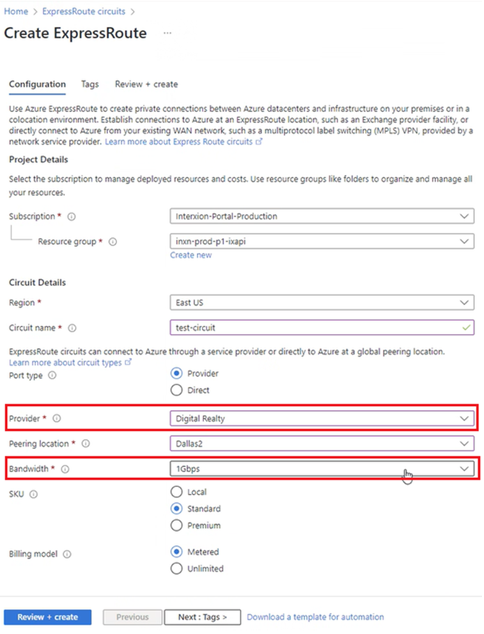
Be sure to select Digital Realty (or Interxion in some EMEA locations) as your provider to properly direct your data toward ServiceFabric. Also, take note of the speed selected as you will need it later in ServiceFabric.
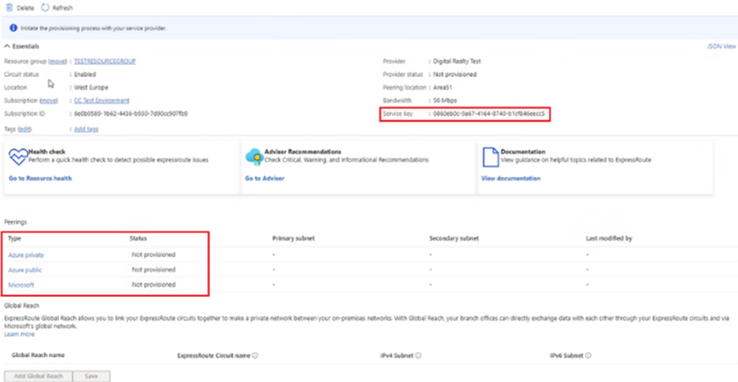
Your shared key is needed when creating your connection in ServiceFabric. Make sure you copy it down. You must also configure peering so your data will properly route within Azure.
An ExpressRoute circuit has two Peering services: Azure Private and Microsoft. Each peering is configured identically on a pair of routers for high availability.
NOTE: Azure Public peering has been deprecated as of march, 31, 2024
VLAN Options#
In the example below, you have two VLANs (also referred as C-tags) with Microsoft Azure Services, VLAN 100 for Microsoft Cloud Services and VLAN 200 for Private Azure. These values are used when setting the Peering VLAN in ServiceFabric.
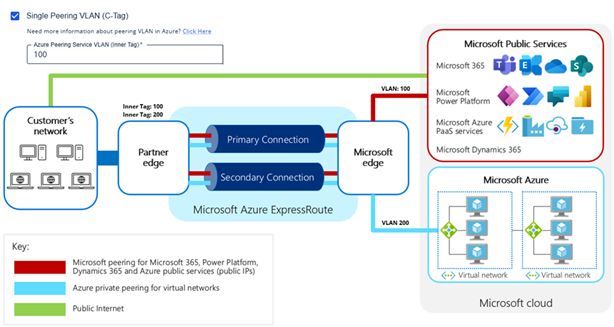
By default, Microsoft ExpressRoute circuits operate in Q-in-Q and diverse configuration. ExpressRoute will send both Peering Service VLANs through the diverse circuits connecting Azure and ServiceFabric. This is why it is important you select Digital Realty or Interxion as your partner edge, to properly deliver your data to the ServiceFabric network.
A-Side Q-in-Q for Azure#
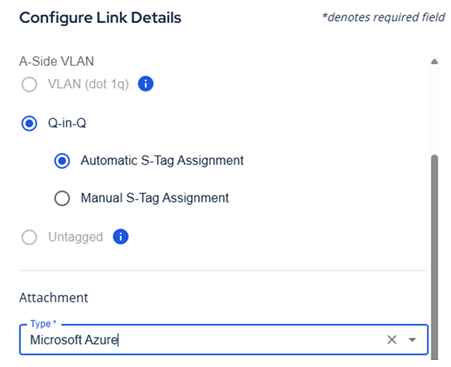
You can specify the Service Tag (S-Tag or Outer Tag) that will be delivered to the ServiceFabric port selected on the A-Side by selecting Q-in-Q and choosing the Manual option. Enter your desired S-Tag and continue. You can also allow ServiceFabric to assign an S-Tag automatically.
NOTE: Setting the C-Tag value for the A-Side is not supported. The C-Tag value is determined by your ExpressRoute settings in Azure. You can find these values by looking in your Azure portal for the ExpressRoute peering values.
Single Peering VLAN#
If you only require a single VLAN (dot1q) or your infrastructure is not compatible with Q-in-Q, you must determine which Peering Service will be delivered to the ServiceFabric port and specify that VLAN be applied to your Link.
When creating a ServiceFabric Link attachment to Microsoft Azure, enable the Single Peering VLAN (C-tag) option.
NOTE: If your equipment supports Q-in-Q, you do not need to select this option. Only choose this option to specify the C-Tag VLAN you want delivered to Azure.
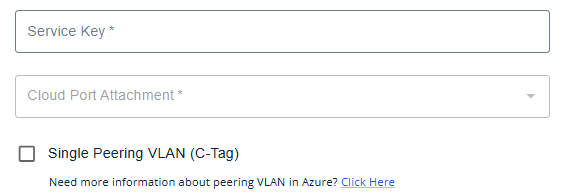
This C-Tag should be the same as the VLAN tag found in the Azure portal for your Peering Service.
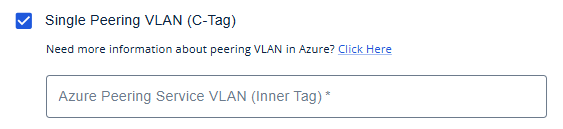
Enter the value you specified in Azure into this field.
NOTE: If you are using the Single Peering VLAN option, you cannot use Q-in-Q or Untagged for the A-Side VLAN configuration.