Bare Metal Servers#
ServiceFabric offers customers Bare Metal Servers to handle their complex workloads or provide additional support for their business needs.
Digital Realty has integrated with Zenlayer and Hivelocity to offer their Bare Metal servers for orchestration through the ServiceFabric portal. This feature includes connecting the server to the customer network via a layer 2 virtual cross connect.
Creating a Bare Metal Server#
To order a bare metal server, login to the portal and select Create Bare Metal Server from the Service Builder. Alternatively, select Inventory and the Bare Metal tab.
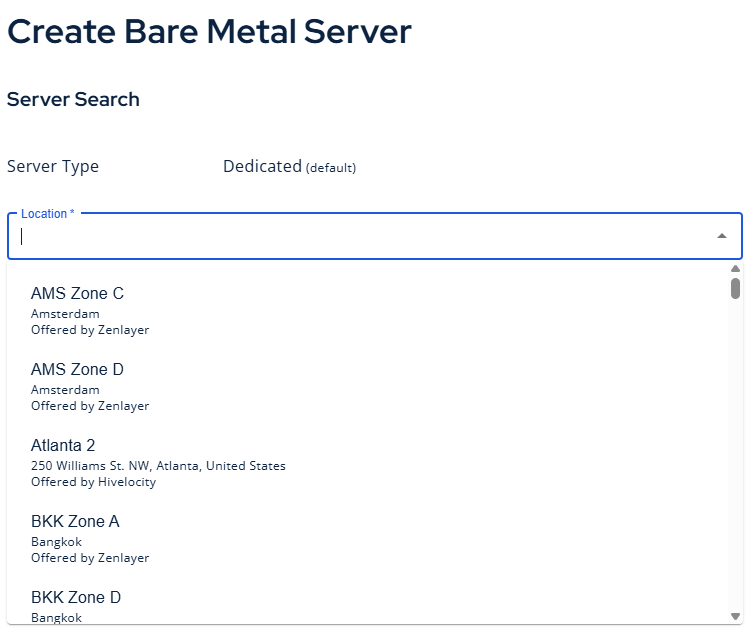
Select a location from the dropdown. These locations are provided by our BMS partners.
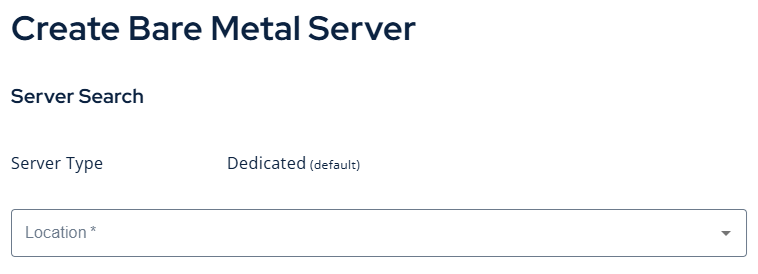
Choose from our partners:
Bare Metal Servers from Zenlayer#
Select one of the locations marked as provided by Zenlayer. You should choose a location close to your desired A-Side attachment in order to minimize the cost of the Link and reduce latency.
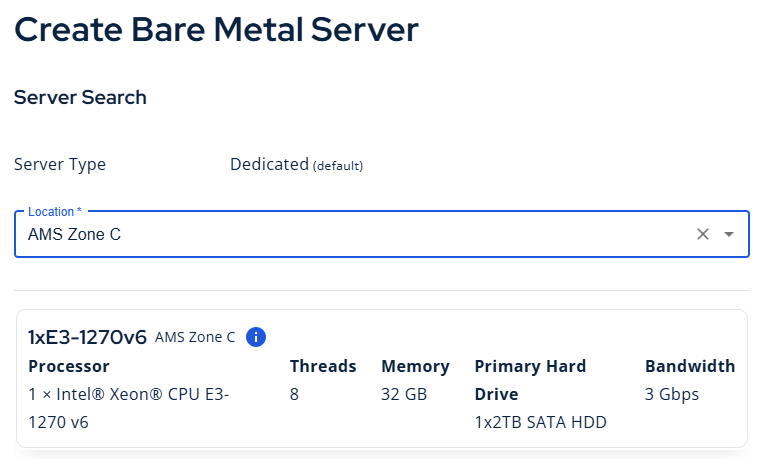
Step 1 - select a server from the desired location.
Step 2 - Select a configuration and click NEXT.
Step 3 - Enter your configuration details.
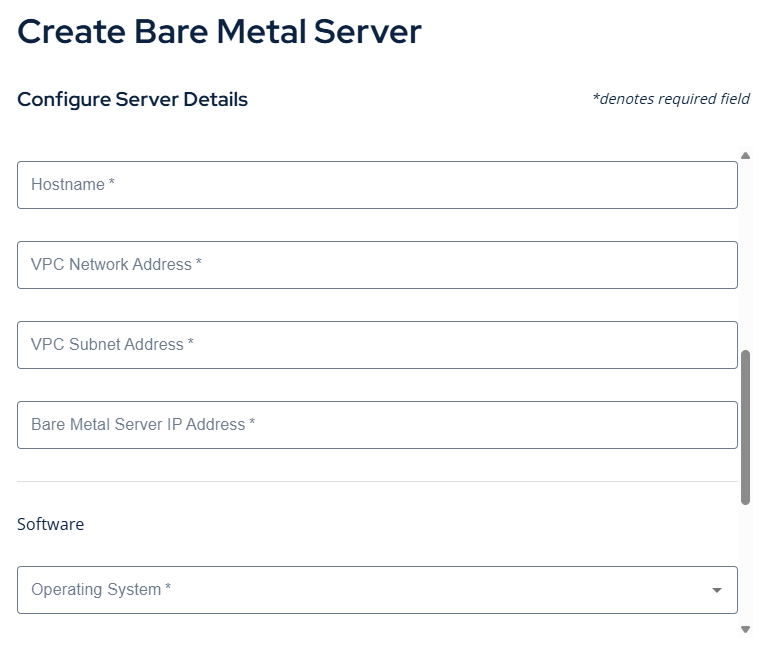
- HOSTNAME: Enter a hostname for your server.
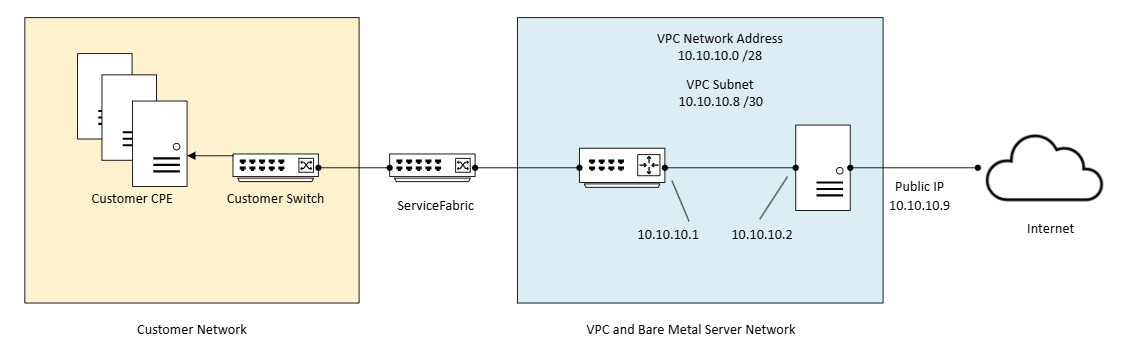
- VPC NETWORK ADDRESS: Enter the Network Address in CIDR format for this VPC.
- VPC SUBNET: This will auto-populate a smaller subnet to be assigned to devices in your VPC.
- BMS IP ADDRESS: This will auto-populate an IP address from your subnet block for the bare metal server.
NOTE: Best practice is to use a smaller subnet, such as a /28 for your VPC.
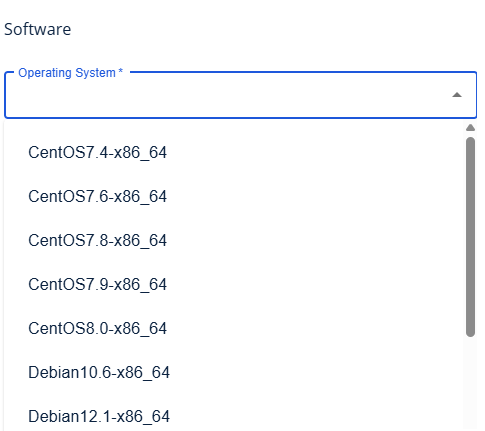
Step 5 - Select an OS (Linux only)
Choose from several different Linux distros.
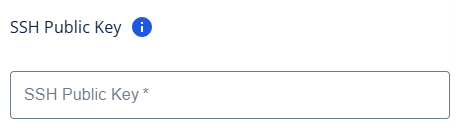
Step 6 - Enter your public SSH key and click NEXT.
Creating an SSH Key#
BMS from Zenlayer on ServiceFabric requires you create an SSH key to access the server. This key must be in RSA or Ed25519 format. To create your public SSH key via bash, issue the following command in a terminal window:
ssh-keygen -t ed25519 -C "your_email\@example.com"
It will save two files, a private and a public key file. Open the public key file and paste this value in the SSH Key field. It should look something like this:
ssh-ed25519 BBAAD3NzaC1lZDI1NTE5HHGFIAI5GYNiRlz/JP7kVMRQV/2Nix82h5t568CQU88v9PGK email_address\@domain.com
Connecting ServiceFabric to your Zenlayer BMS#
Connecting to your BMS from Zenlayer is easy, but does require some additional configuration on your network.
Every BMS from Zenlayer resides in a VPC that you configure during creation. You'll need to peer with this VPC from your own network, which requires setting up BGP between your router and the VPC. You'll need the subnet information you used on your equipment in the following steps.
Create a BMS Link - Start a new Link from the navigation menu or from Inventory. Select your A-Side port and choose Bare Metal as your attachment type in Step 2 on the right.
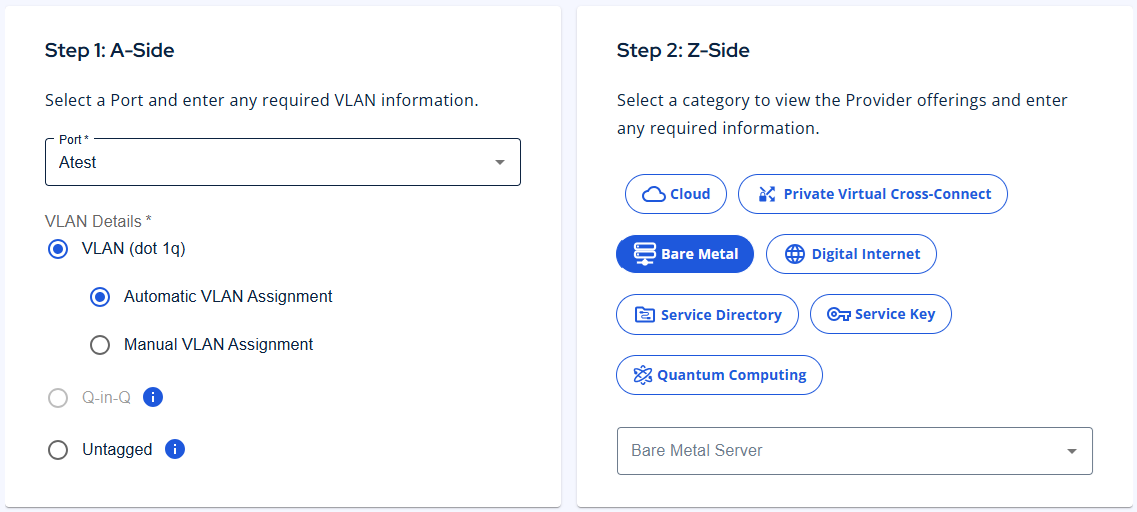
Select your server from the available servers in the dropdown on the right side under Step 2.
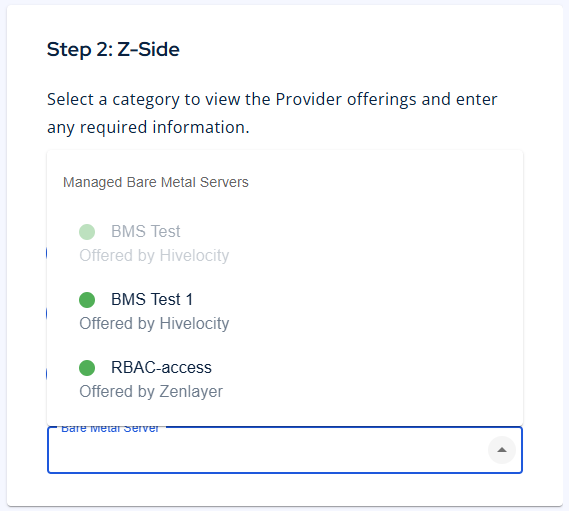
Fill out the required details for your BMS. You'll need your ASN and the BGP configuration from your router.
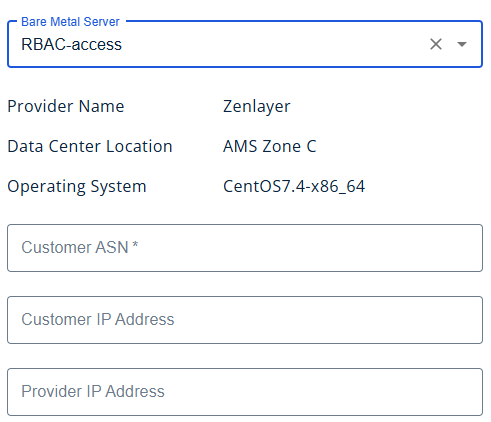
- Customer ASN - The ASN you entered for your BGP session.
- Customer IP - This is the BGP IP you used for your end of the BGP connection.
Typically this would be a /30 IP address (Example 169.254.0.1/30)
- Provider IP: This is the BGP IP you assigned for the BMS side of the session.
Typically this would be a /30 IP address in the same subnet as the customer IP (Example 169.254.0.2/30)
Select your speed and click NEXT. Give your link a name and an optional description. Complete the creation by clicking SUBMIT.
Logging into your new Bare Metal Server#
You can connect to your bare metal server via SSH to the public facing IP address assigned during the provisioning process. You can find this IP by examining the details for your bare metal server.
Here is an example of the SSH command:
ssh root\@[bms_server_public_ip]
Routing from your BMS to your ServiceFabric network#
In order to reach your BMS from the ServiceFabric network, you must place a route on the BMS specifying how to find the ServiceFabric network.
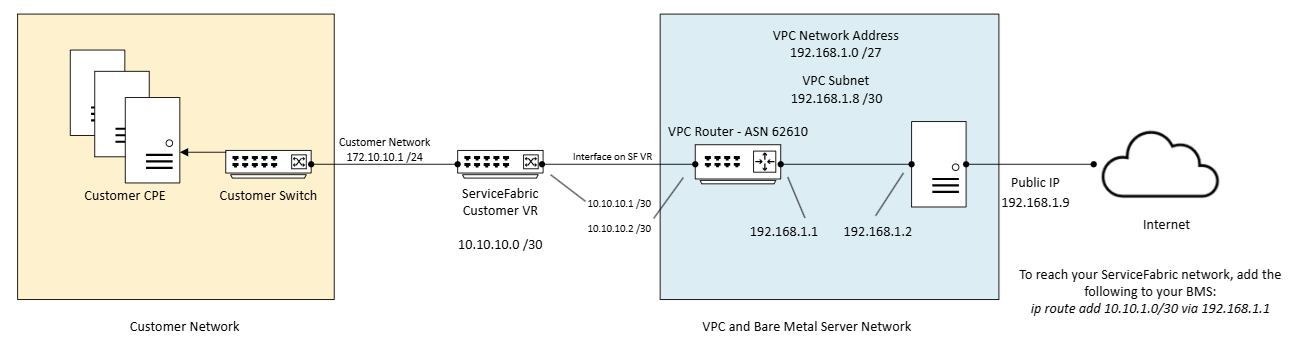
EXAMPLE: ip route add 10.10.1.0/30 via 192.168.1.1
The example above instructs your new BMS to find the ServiceFabric network via the 10.10.10.0/30 network.
Hivelocity Bare Metal Servers#
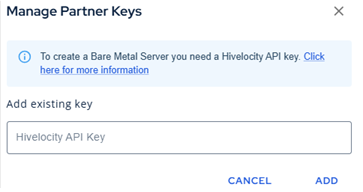
If you are purchasing a BMS from Hivelocity, you will need to enter your API key. This allows ServiceFabric to load your inventory and connect your ports to the server.
- Select Manage Partner Keys
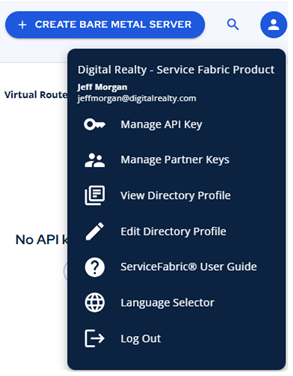
- Click Add Existing Key
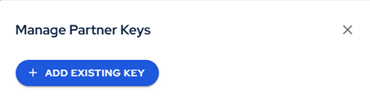
- Enter your Hivelocity partner key and click ADD
Creating a server from Hivelocity#
If you have completed the API key steps to link your Hivelocity account, create your BMS by visiting Inventory and the Bare Metal tab. Click Create Bare Metal Server to start.
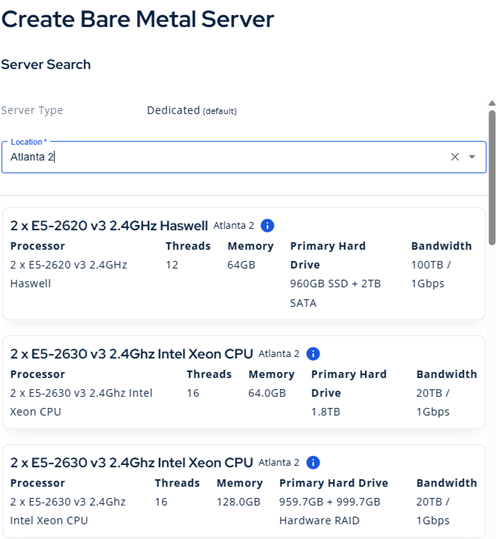
Select a location provided by Hivelocity from the Location dropdown:
Choose a Configuration#
Select a configuration that works for your business needs.
Name Your Server#
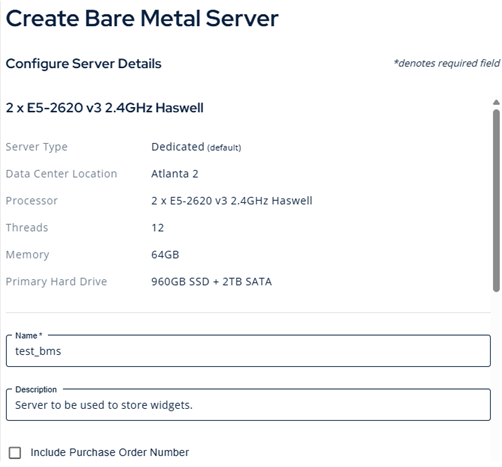
- Give your BMS a Name and a Description
- Purchase Order Number: Now you can add a PO# that will be appended to this line item on the ServiceFabric bill. Enable the checkbox and enter your PO#.
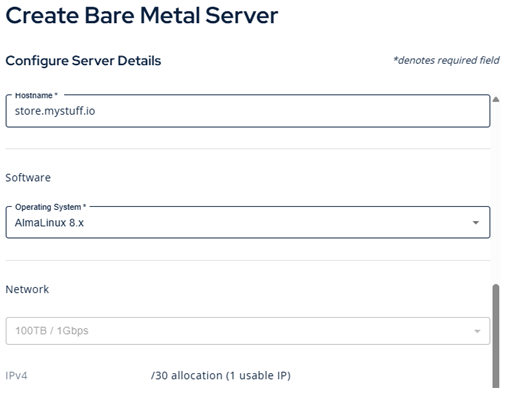
Select an Operating System and Hostname#
- Give your BMS a hostname and select an Operating System.
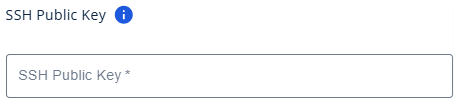
SSH Key#
- An SSH key is required to connect remotely to your server.
- Must be in RSA or ED25519 format.
Connecting to Your Hivelocity Managed BMS#
There are two types of Bare Metal servers from Hivelocity.
Managed BMS - Servers that are created within the ServiceFabric portal are considered “managed” by ServiceFabric.
Unmanaged BMS - Servers created in the Hivelocity portal are considered unmanaged.
It's possible to connect a layer 2 VXC to an unmanaged BMS. You must break the bond on the port on the server in order to connect to it via ServiceFabric. Login to the Hivelocity portal and select the interface you wish to alter and click the "UNBOND" button.
https://www.hivelocity.net/kb/vlan-network-guide/
- Visit Hivelocity.net to access the customer portal and log in.
- The screen below, which lists all of your devices, will show up after you log in.
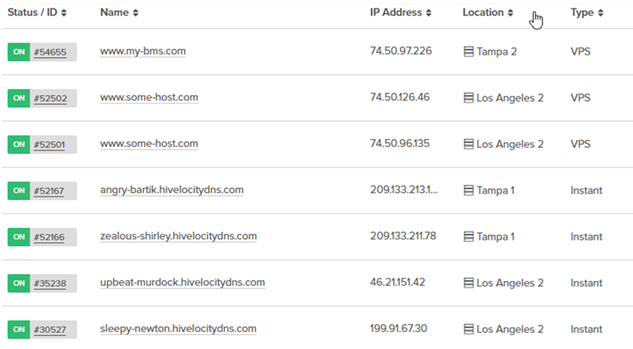
- Press the ID# of the device from which you wish to remove the bond.
- To display the current interfaces, click the "Interfaces" button on the left navigation screen. Then, click "UNBOND" to break the network bond. When prompted to disable the bond, click "Yes, Disable BOND0."
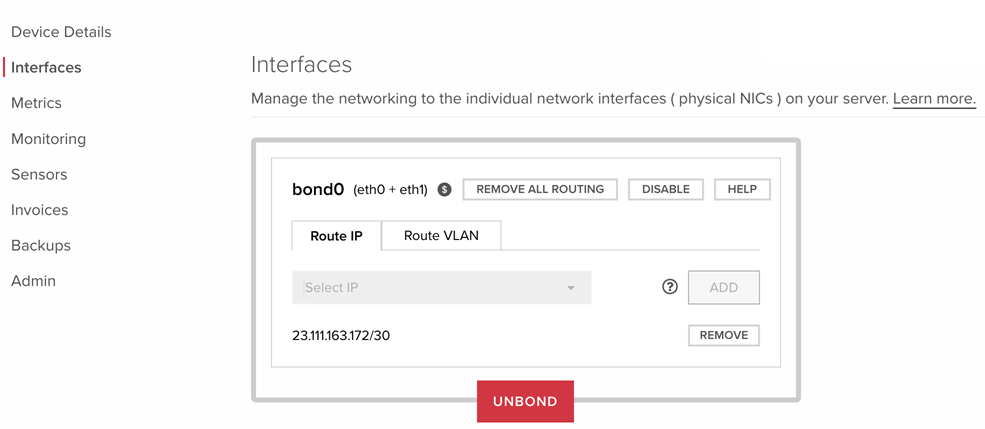
- When prompted to disable the bond, click Yes, Disable BOND.
Connecting A Port to Your Hivelocity BMS#
Connecting a Link to your Hivelocity BMS is easy.
- When picking your attachment type, simply choose BMS from the type selector
- Your severs will populate in the next selector.
- Choose the Hivelocity BMS from your existing BMS servers.
- If your API key has expired, click the button to add a new one.
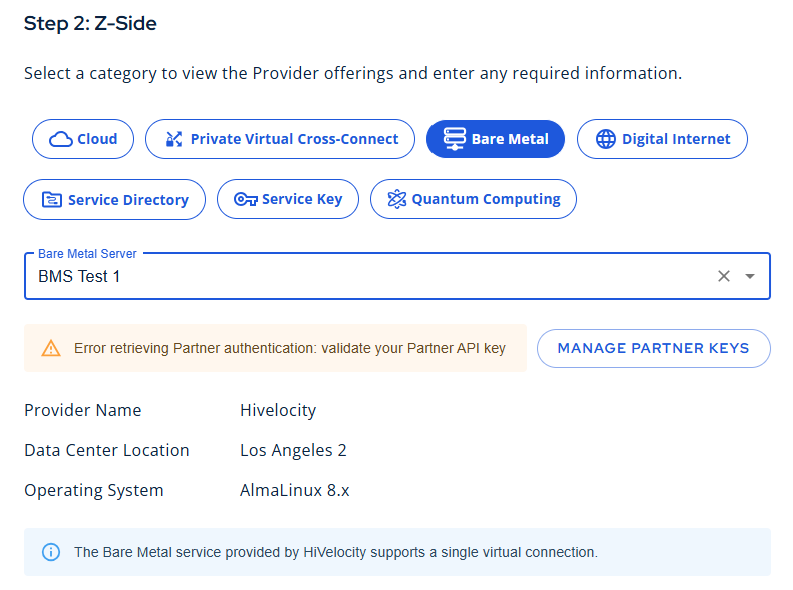
Hivelocity supports only 1 virtual cross connect per server.