Authorize Port / Port Group Setup#
After you download your authorization forms (LOAs), you must then log in to the Marketplace portal (Digital Realty or Megaport ports in a Digital Realty data center), the Interxion Customer portal (Interxion ports), or a similar type of portal to request the cross-connect(s) and submit the authorization(s), as detailed in the sections below.
Submit Cross-Connect Request via Marketplace Portal#
Your equipment will be the A-side while connecting to ServiceFabric®, and the ServiceFabric® network equipment/port mentioned in the downloaded LOA will be the Z-side. You must carry out the procedures listed below to submit a cross-connect request on the Marketplace site for Digital Realty and Megaport ports:
- Log in to the Marketplace portal.
- Click on Order Services in Top Navigation.
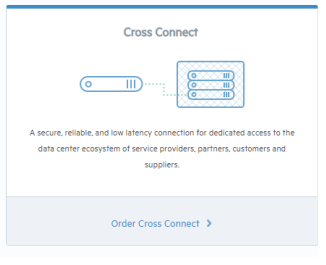
- Choose cross-connect icon.
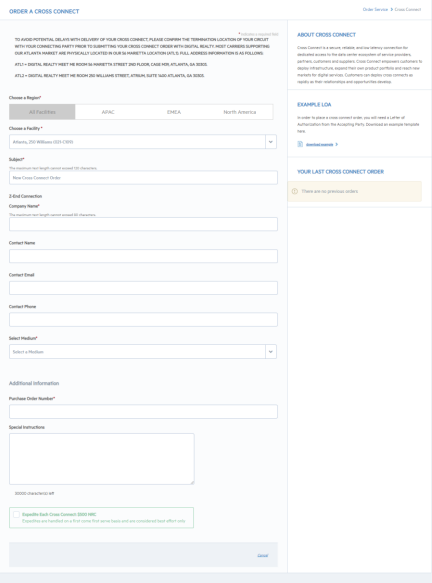
- Complete the cross-connect request form, adding ServiceFabric to the Subject Line.
Submit Cross-Connect Request via Interxion Customer Portal#
The A-side will be your equipment and the Z-side will be the ServiceFabric® equipment when connecting to it through an Interxion port. You must carry out the same procedures to submit a cross-connect request on the Interxion portal:
- Log into the Interxion Customer Portal.
- Click on Products from Left Navigation.
- Choose Cross Connect.
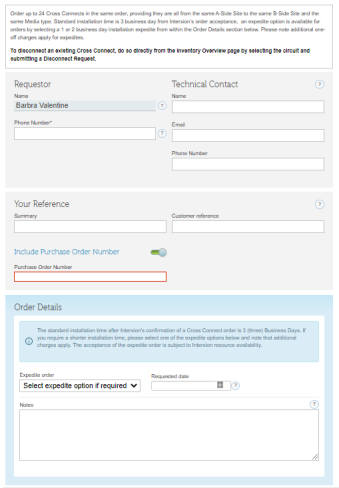
- Fill out the Cross Connect request form.
- Complete the A-Side (yours) and Z-Side (network) information.
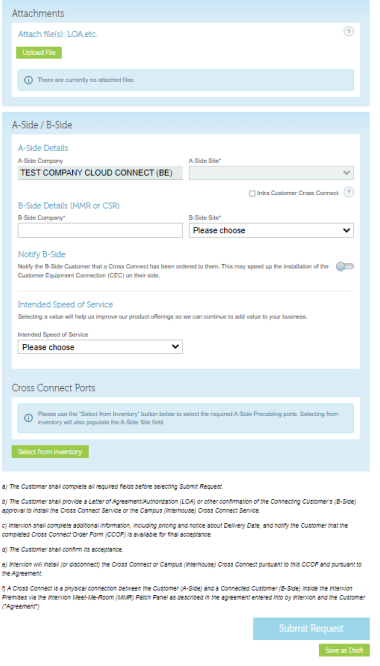
- Click Submit Request.
Submit Cross-Connect Request via Scale Portal#
- Log in to the Scale portal.
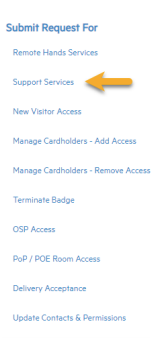
- Click on Support Services from Left Navigation panel.
- Click on Cross Connect, from the drop-down menu select Cross-Connect Installation.

- Fill out the Cross Connect form ensuring that ServiceFabric is mentioned in Step 3:
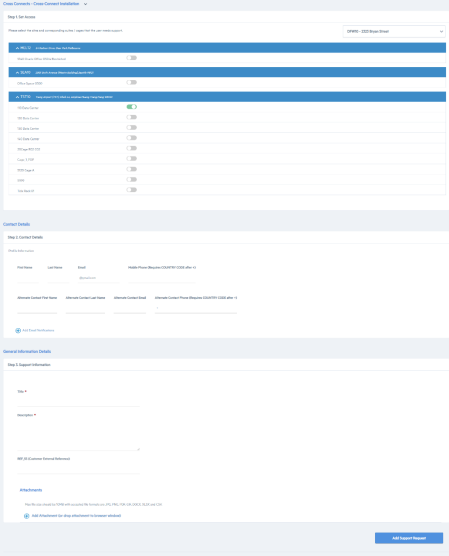
- Click Add Support Request.