Networking Tools#
ServiceFabric provides tools that make troubleshooting easier.
Ping from Virtual Router#
Feature Specifications
- Ping a destination on a specific firewall gateway or Virtual Interface
- Keeps a history of your ping attempts
- Can be copied for pasting into other tools
NOTE: Only available for Digital Realty virtual routers. Not available on partner routers.
Using the Ping Tool#
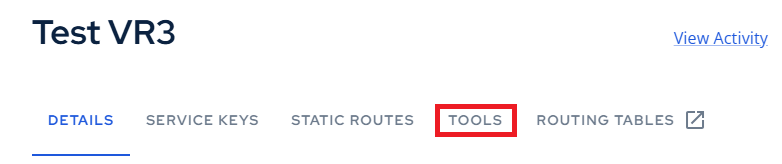
Step 1: Open your Virtual Router from Inventory and select the Tools tab.
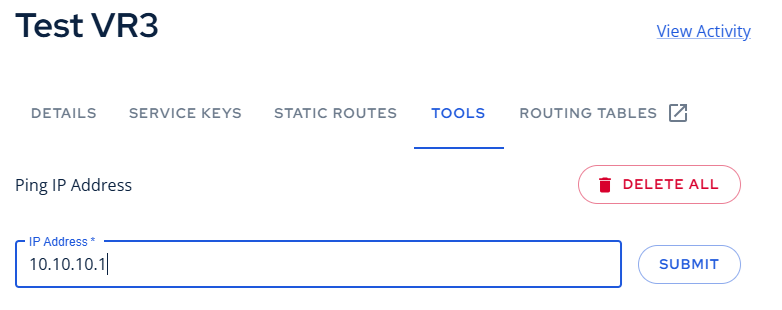
Step 2: Enter an IP address you wish to ping and click Submit.
Your ping will complete and the result are displayed in the expanded area. You can copy the results by clicking the Copy icon found beside the trashcan.
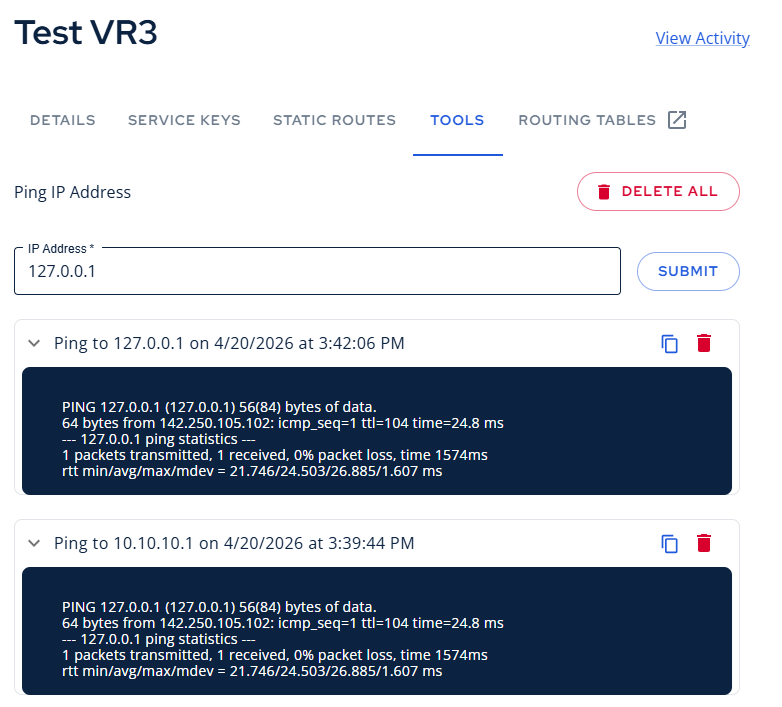
Historical data is kept in expandable rows for easy access.

Routing Tables#
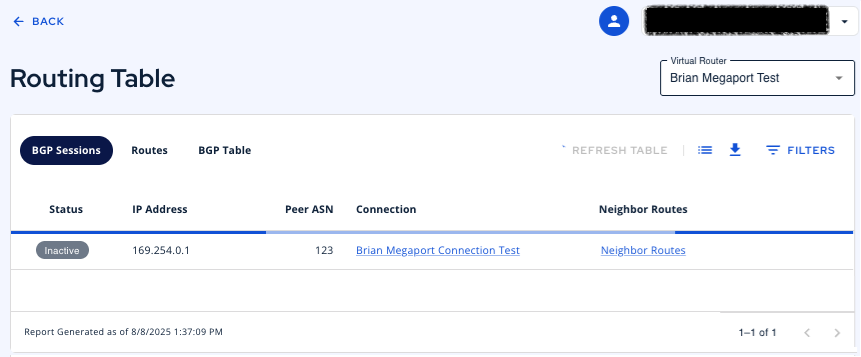
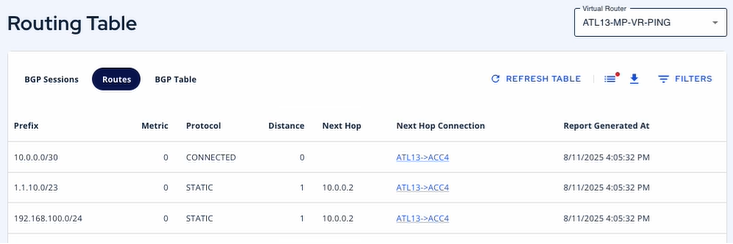
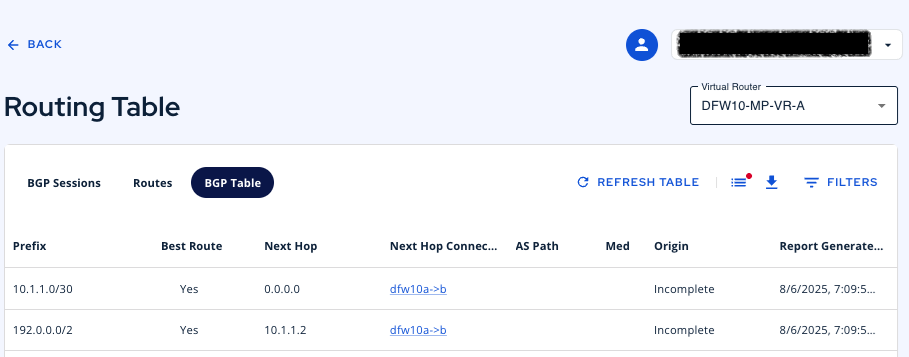
Routing Tables serve as a fundamental resource for verifying BGP sessions, routes, and their statuses. These tables present a comprehensive overview of all routes advertised by neighboring BGP peering sessions, alongside static routes and peering networks. Furthermore, they offer critical insights into network costs, protocols, and interface data.
The Routing Tables can be accessed under the Virtual Router tab in the Inventory.
In the Routing tables, users should be able to view:
- BGP sessions and neighbor routes
- Static routes
- Full BGP Table
Feature Specifications:
- Manual Refresh button
- Deep links to the associated Virtual Routers
- Get IP Route details (Distance (cost), Metric, Next Hop, Network Prefix, Protocol, Associated Link/connection)
- Get BGP Routes (AS Path, Best Route, Metric, MED, Origin IP, Next Hop, Associated Link/connection, Timestamps)
- Get BGP Sessions (Peering IP Address, Status, Peering ASN, Associated Link/connection, Timestamp, BGP Neighbor routes)