Creating Service Keys#
Service Keys allow a ServiceFabric customer to grant controlled access to a port or virtual router to another ServiceFabric® customer. When creating a Service Key to a ServiceFabric resource you can specify how long the key is valid and how much bandwidth to the resource is available. Note that all keys expire as soon as they are used. This is by design so a key either expires once used or by the expiration date.
You can create a Service Key in several ways:
- Inventory
- From a Port or Virtual Router details pane
Inventory#
You can view all your existing Service Keys at once from your Inventory. Select the Service Keys tab to view them. To create a new key, simply click the Create Service Key button at the top.
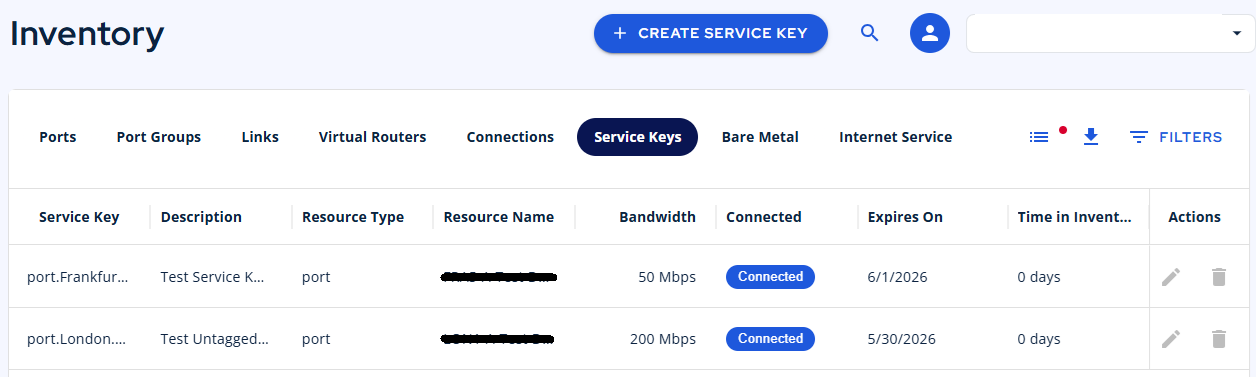
To view a Service Key, click the row to open the details pane. To edit a Service Key, click the pencil icon. You can change the speed, description, VLAN, and expiration date.
Port#
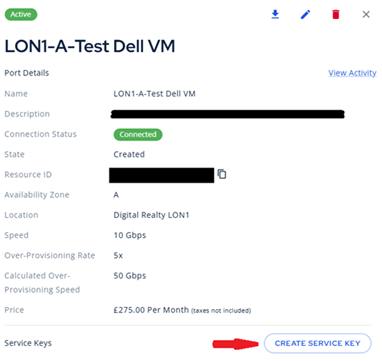
- Choose CREATE SERVICE KEY.
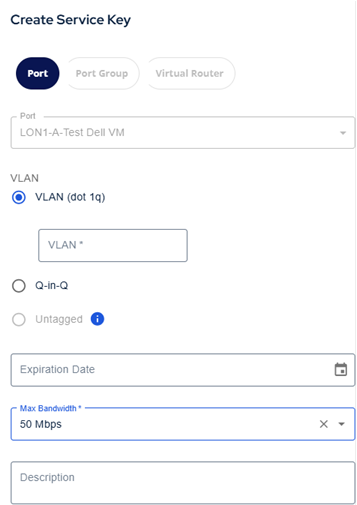
- Type in the name, description, bandwidth, expiration date, and VLAN information for this port.
- To enable connections to your resource, send the key to approved ServiceFabric users.
Virtual Router#
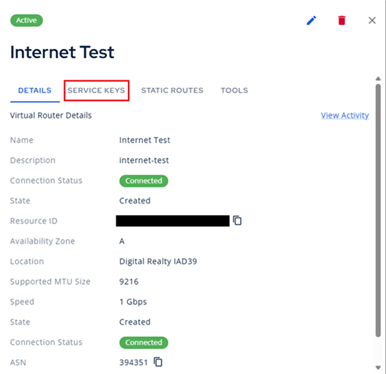
- Choose CREATE SERVICE KEY.
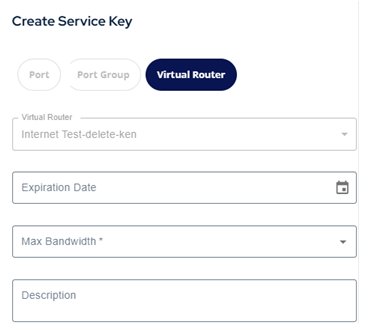
- Type in the name, description, bandwidth, and expiration date for this virtual router.
- To enable connections to your resource, send the key to approved ServiceFabric users.
Using the Service Key#
ServiceFabric® supports Google Cloud, IBM Cloud, Microsoft Azure, Oracle Cloud, Megaport, Interxion, and ServiceFabric® service keys, as well as the Amazon AWS Account ID, for connecting to resources.
- Create a link.
-
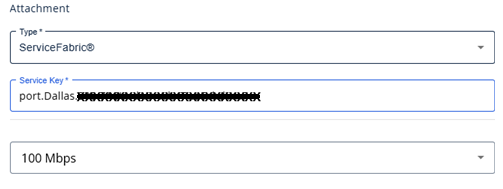
Set the attachment to the appropriate provider of the key, such as ServiceFabric® for other platform users or Megaport when connecting to a Megaport customer.
-
The connection speed may be adjusted after entering the service key.