Digital Internet from ServiceFabric#
ServiceFabric offers its own Internet service, called Digital Internet. Customers can connect their ServiceFabric ports to Internet services provided by Digital Realty’s IPBW service and other integrated partners, where available.
Common use cases include providing an alternate path into a customer’s network for management or license activation. Customers with more permanent bandwidth requirements can quickly order Internet service and share it across their ServiceFabric locations.
Benefits#
- Fast provisioning of Internet connectivity
- Bandwidth speeds up to 10 Gbps in select markets
Feature Specifications#
- Supports Links and Connections
- Available only within the same region; for example, a port in Seattle cannot connect to Digital Internet in London
- Can attach to any ServiceFabric port or Virtual Router
- Supports Availability Zones in many locations
- Bandwidth speeds from 50 Mbps to 10 Gbps
- Multiple WAN IP blocks
- Additional IP blocks for a fee
- Default routes
- Public and private BGP
- Routed LANs
- Pricing based on the region and network path of the Link or Connection
Ordering Digital Internet#
To order Digital Internet, select Create Internet Service from the Dashboard or Service Builder in the navigation menu.
This opens the Digital Internet wizard. Enter the required service details, including the A-Side selection, network configuration, and routing options.
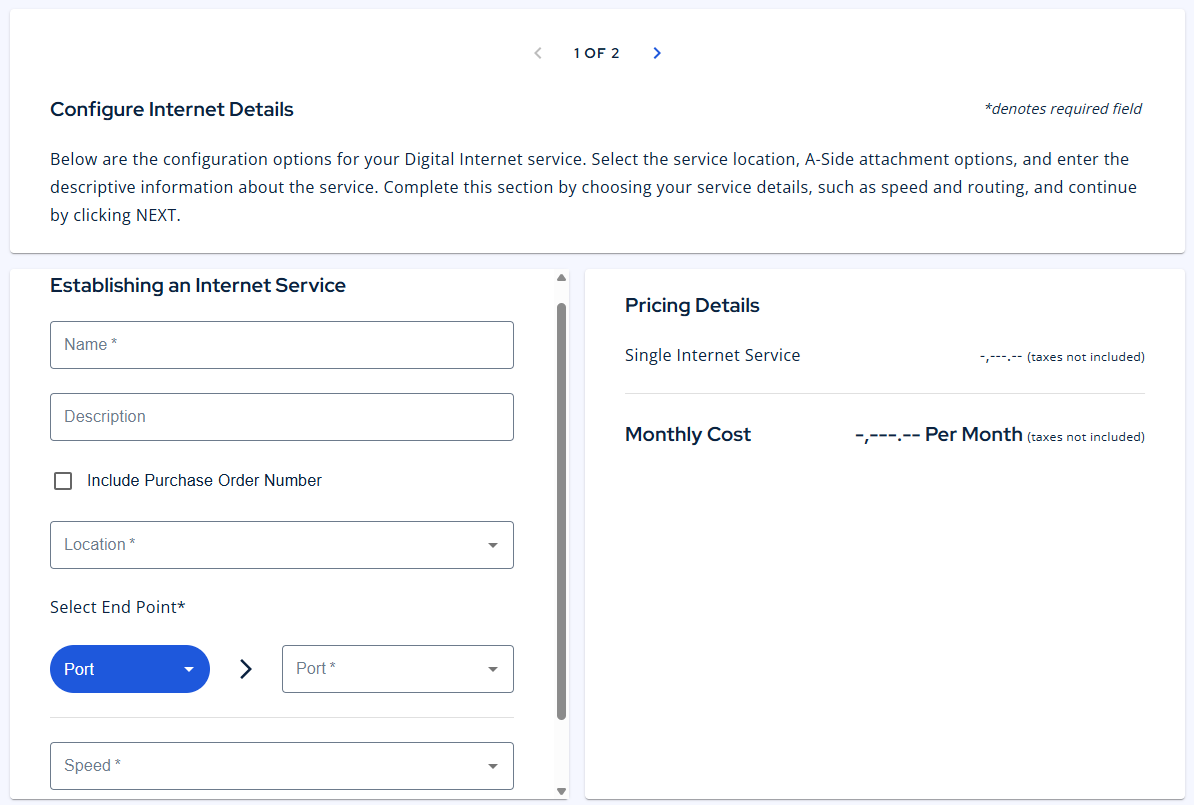
Step 1: Name, Description, and Purchase Order Number#
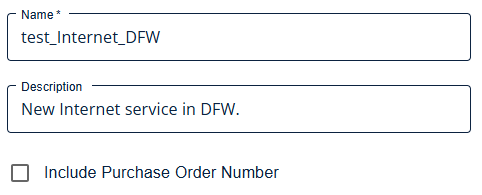
Enter a unique name for your new service. Then enter an optional description and purchase order number.
Step 2: Service Location#
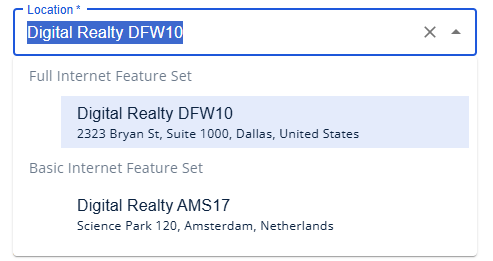
Select a location for your new service. In most cases, this is a full-featured Digital Realty site offering Digital Internet. In some locations, the service may be provided by a partner and may not support features such as additional IP addresses or BGP routing.
Basic versus Full Feature#
Basic Internet provides a single-IP Internet connection without advanced features such as BGP or multiple IP blocks. It is suitable for out-of-band management and lower-bandwidth requirements.
Full Feature provides access to all available Digital Internet routing and IP options, including public and private BGP and support for customer-owned IP blocks.
Step 3: Choose an A-Side Endpoint#
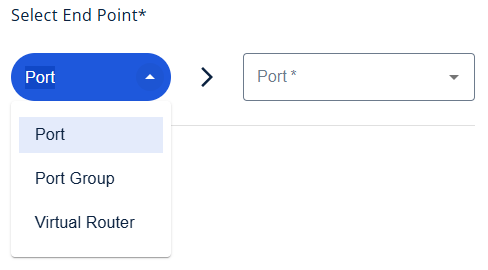
Select the customer-side endpoint for your service. You can select a port, port group, or Virtual Router.
- For a port or port group, specify the A-Side VLAN details.
- For a Virtual Router, specify a compatible MTU.
Step 4: Select a Service Type and Speed#
The service type determines your billing arrangement based on the amount of bandwidth you need.
Fixed Internet: Select a speed and your service will never go above that speed, incurring additional charges.
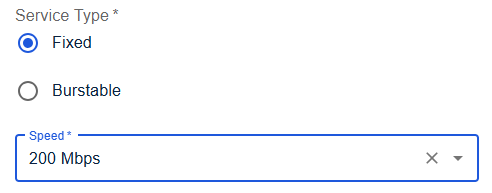
Burstable Internet: Bursatble allows you to select a speed tier and enjoy periodic bursts above the CDR. Bursting provides additional bandwidth when needed. Additional charges apply only when total consumption exceeds the CDR by more than 5%.
Note: You pay for the lower speed but are allowed to burst up to the top speed.

Step 5: Add WAN IPs#
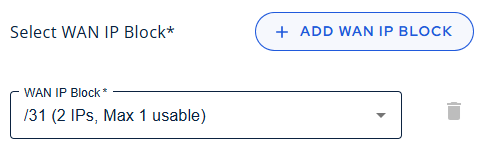
Add a WAN IP block to your service. You can rent up to 10 blocks, with charges based on the number of IP addresses. At least one IP block must be assigned to the WAN port.
Step 6: Choose Routing Options#
Select a routing type based on your network requirements. Digital Internet supports public BGP, private BGP, and routed LAN IP blocks.
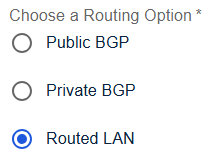
Routed LAN#
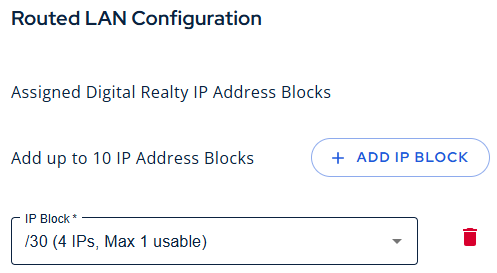
Digital Realty can lease up to 10 additional IP blocks. Select Add IP Block, then choose the required size from the drop-down menu. To remove a block, select the red trash-can icon.
Private BGP#
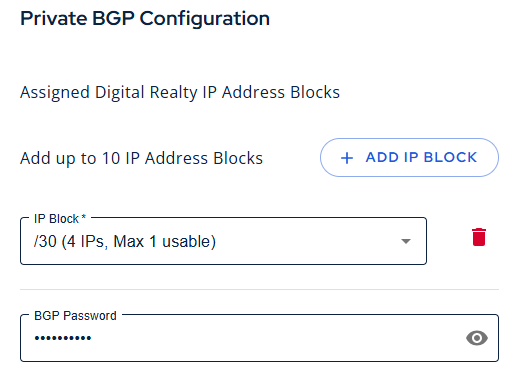
Configure private BGP between your network and Digital Realty’s Internet infrastructure. Add up to 10 IP blocks and, optionally, a BGP password.
Public BGP#
Configure public BGP between your network and Digital Realty’s Internet infrastructure. Select your customer-owned IP blocks and choose a routing type from the drop-down menu.
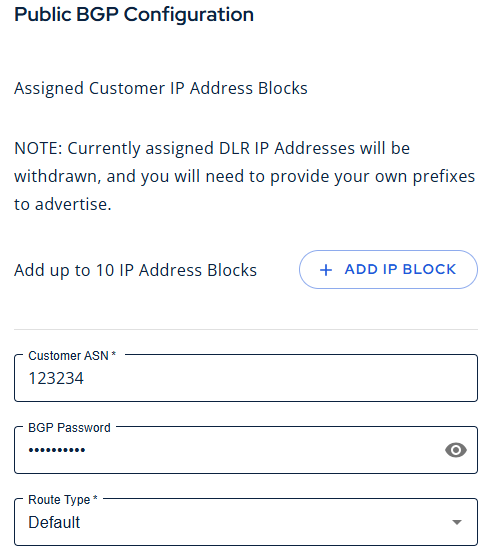
NOTE: Approval is required for all customer-owned IP blocks. Contact your account team to request approval. Include the IP ranges you want to bring and proof of ownership. After approval, the customer-owned IP blocks will be added to your account and become available for selection.
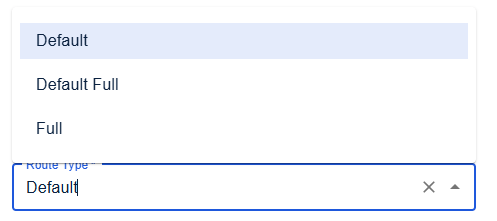
The routing type drop-down menu includes:
- Default Routes
- Default and Full Routing Table
- Full Routing Table
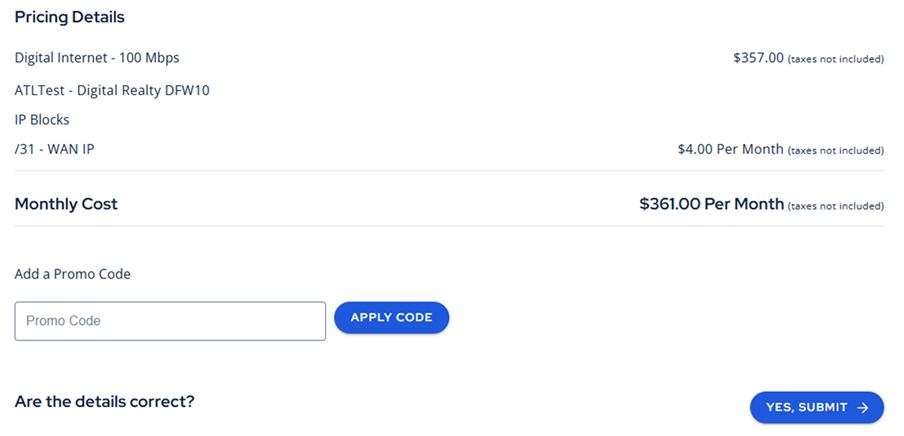
Summary#
Review your final configuration and pricing. If the configuration is correct, continue to the Submit step.
You can also enter a promotional code provided by your account team.
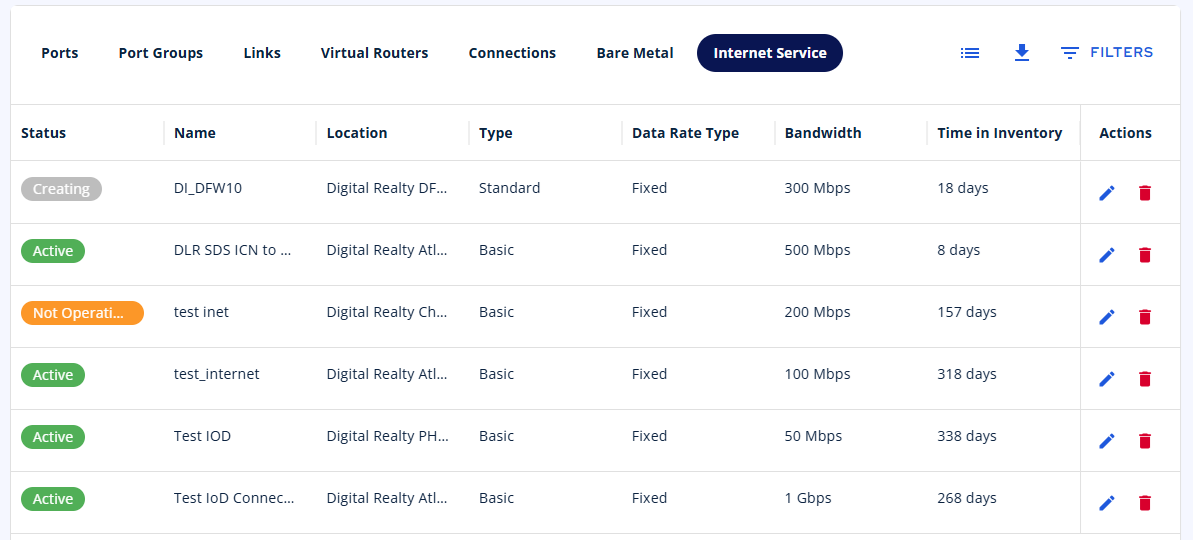
Inventory#
Your new Internet service appears on the Internet tab in Inventory. Each service connects to its A-Side through a virtual cross-connect.
You can find this virtual cross-connect on the Links or Connections tab.
Editing Digital Internet#
To edit your Internet service, open Inventory and select the Internet tab. Select the pencil icon for the service you want to edit.

NOTE: You can edit the speed of your Internet Link, but doing so may result in a lower service level if the speeds do not match.
Adding or Removing Links from Digital Internet#
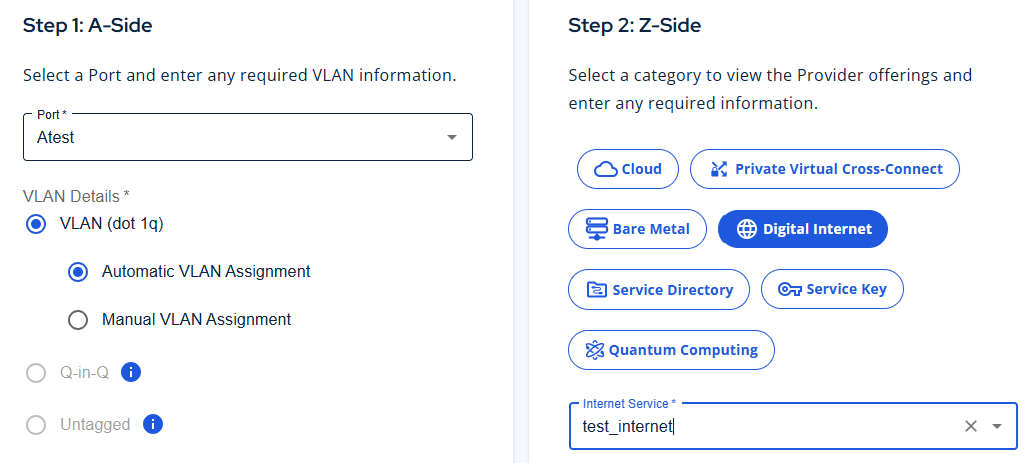
You can remove the Link attached to your Digital Internet service and add a different Link. After removing the existing Link, create another Link and attach it to the service.
- Open Inventory and select the Link tab.
- Select Create Link.
- Select the A-Side port.
- Select Digital Internet as the attachment type.
- Select the required Digital Internet service from the populated drop-down menu.
- Select the new speed.
- Select Next.
95th-Percentile Billing#
Digital Realty Trust’s Digital Internet service uses the industry-standard 95th-percentile (“95th P”) billing method.
Bandwidth usage is measured approximately every five minutes—about 8,000 measurements during a 30-day billing cycle—and recorded in a log. At the end of the month, the measurements are sorted from highest to lowest. The top 5%—approximately 36 hours in a 30-day billing cycle—is discarded. Values are rounded up to the next whole number. For example, a 95th-percentile value of 11.3 Mbps is billed as 12 Mbps. This process is performed separately for inbound and outbound traffic.
The higher of the inbound and outbound measurements is used to calculate the billable utilization for the month. As a result, the highest 36 hours of peak traffic are excluded from the monthly calculation.
Bandwidth can be used at a higher rate for up to approximately 65 minutes per day without affecting the monthly committed rate. Any overage is billed at the same per-Mbps rate as the CDR.
For example, if the monthly 95th-percentile usage is 6 Mbps and the service has a 10 Mbps CDR, there is no overage charge. If the CDR is 5 Mbps, the overage is 1 Mbps:
6 Mbps (95th P) – 5 Mbps (CDR) = 1 Mbps (overage)
The overage charge is calculated as follows:
1 Mbps (overage) × bursting per-Mbps rate = monthly overage charge
Your per meg burst rate is based on the tier you chose and is not the same as your per meg rate for Internet. Overage charges are billed in arrears on a separate monthly invoice that identifies the overage and the amount owed. Contact your Client Service Manager with questions about 95th-percentile billing or other billing matters.
Custom IP Requests#
Customer-Provided IP Blocks#
Contact your account team and provide:
- Customer name, exactly as it appears in ServiceFabric
- Internet location or metro
- Customer-owned IP blocks
- Proof of ownership, such as a letter of authorization (LOA)
- Customer ASN, for public BGP only
Your account team will open a support request on your behalf. After approval, return to the ServiceFabric portal to add the IP blocks to your service.
NOTE: Requests are typically completed within one to two business days.