Service Directory#
ServiceFabric makes it easy to connect your network to over a hundred leading enterprises and service providers. These providers have connected their platforms to the ServiceFabric network and listed their services in the Service Directory. This directory is your one-stop shop for connecting your network to a provider with just a few clicks.
For the Customer#
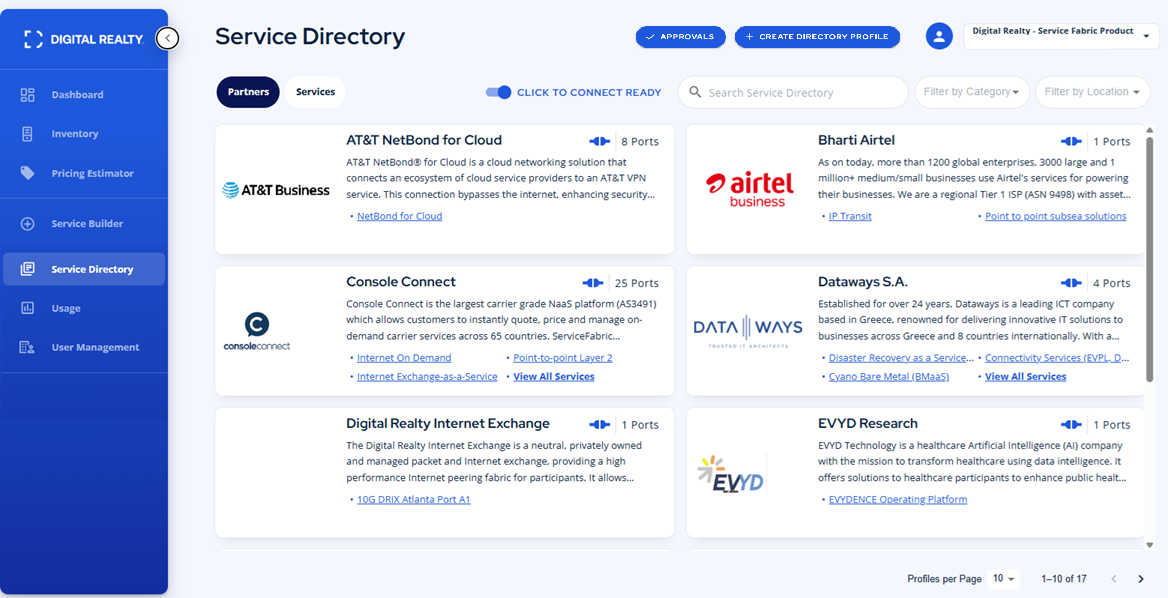
Click on Service Directory in the Navigation Panel.
Search Service Directory#
You can search by vendor, location, service category or service type by typing your search terms or selecting items from the dropdowns above the directory.
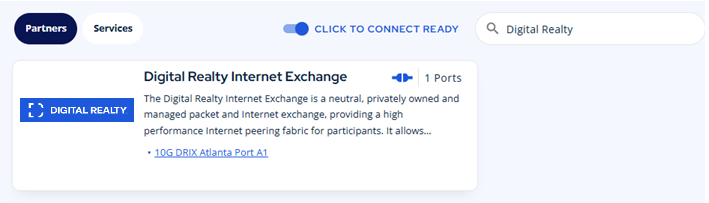
Enabling the Click to Connect slider filters the results to show only those providers with ports available for Click to Connect.

Click to Connect#
Users can connect to a provider easily using the Click to Connect functionality. With the desired service information page open, scroll to the bottom where the provider's available ports are listed.

NOTE: ServiceFabric does not bill for provider services. You are billed only for the port and connections you create on the ServiceFabric platform. Contact the provider prior to attempting to connect to their network.
- Click the +CONNECT button.
- Enter all the required information (Name, Port, A-Side VLAN etc.).
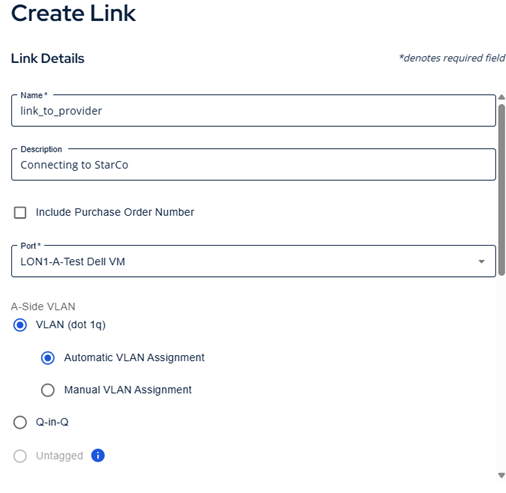
- Select a speed. The provider determines the available speeds.
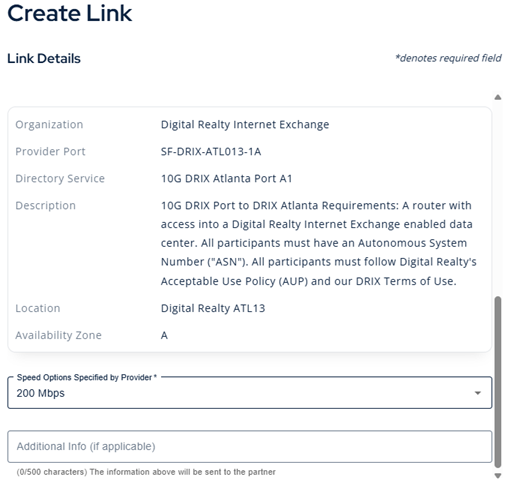
- Add any additional information required by the provider in the Additional Information field. This text is passed to the provider and typically contains information to identify you as a customer.
- Click NEXT button at the bottom of the form to begin the link creation process.
- Review your changes and confirm by clicking YES, SUBMIT.
- You may click the CANCEL button at any time to close the form without saving the port definition.
For the Provider#
Creating a Directory Profile#
To get started as a provider, you must create a profile.

- Click CREAT DIRECTORY PROFILE at the top right-hand corner.
- Enter the required information in the Profile Creation form (Company Name, Company URL, Company Contact Email, & Company Description are required fields).
- Upload your company logo. Press Next.
- Review the details you entered and select the submit button.
NOTE: Your profile creation request must be reviewed before adding new services. This review process is quick and ensures all information is correctly formatted for best display in the Directory.
Adding New Directory Service(s)#

Adding a new service to the directory is easy. You'll enter some basic information about your service and it will be
NOTE: Your profile creation request must be reviewed before adding new services. This review process is quick and ensures all information is correctly formatted for best display in the Directory.
- Once your profile page is approved, select ADD DIRECTORY SERVICE(S)
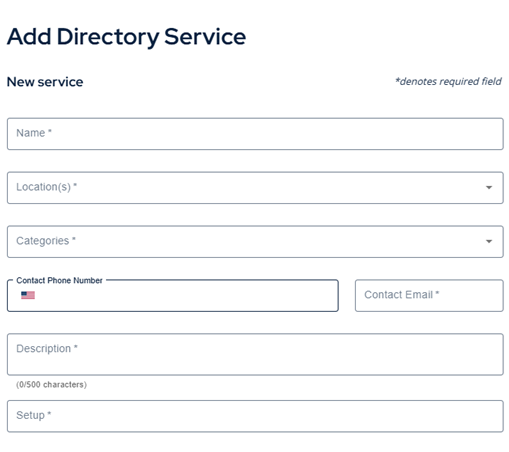
- Enter the necessary information as required by the Add Directory Service form. Press Next. Make sure you give a good description and a note about setup.
- Review the details you submitted and select the submit button.
Disable Profile or Directory Service(s)#
- To disable your profile page, open the directory entry for your company and toggle the Profile Enabled slider to off.
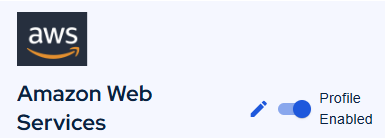
- If you would like to delete a service or disable it, select DELETE DIRECTORY SERVICE button or toggle the Service Enabled slider.

Adding/Removing A Port for Your Service#
- Select the Directory Service to which you want to add a port.
- Scroll to tyhe bottom right and click +ADD PORT.

- Choose the port that you want to add and the maximum bandwidth per link. Click NEXT.
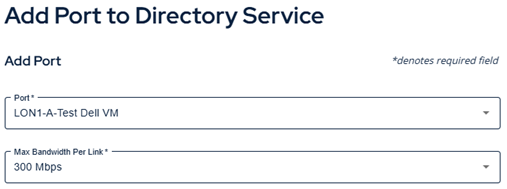
- Review your selections and confirm by clicking YES, SUBMIT. Your port has now been assigned to your Directory Service.
- To remove a port from your Directory Service, click the trash icon on the port. By clicking the pencil icon, you can also adjust your port's maximum bandwidth per link.
Approve/Deny Links create on Directory Service Ports#
- To approve or deny a link made using your Directory Service Ports, just select "Approvals" located at the upper right corner of the page.
- You are presented with a table of submissions to connect to your port.
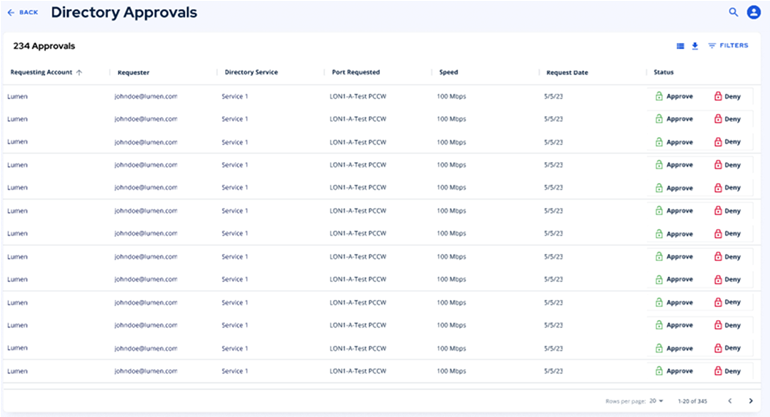
- You may approve or deny the created link from the approvals page. The user will receive an email after the service has been approved or denied.
- During the approval you are able to set the appropriate VLAN and speed settings for your customer.
- The Additional Information (if provided by the customer) will be displayed to the provider.
Megaport Marketplace Enabled Providers#
To learn more about how our Enabled by Megaport Marketplace experience differs from Service Direcory, visit our Enabled By Megaport page.